
Find tracks that mix in key with CuePoint
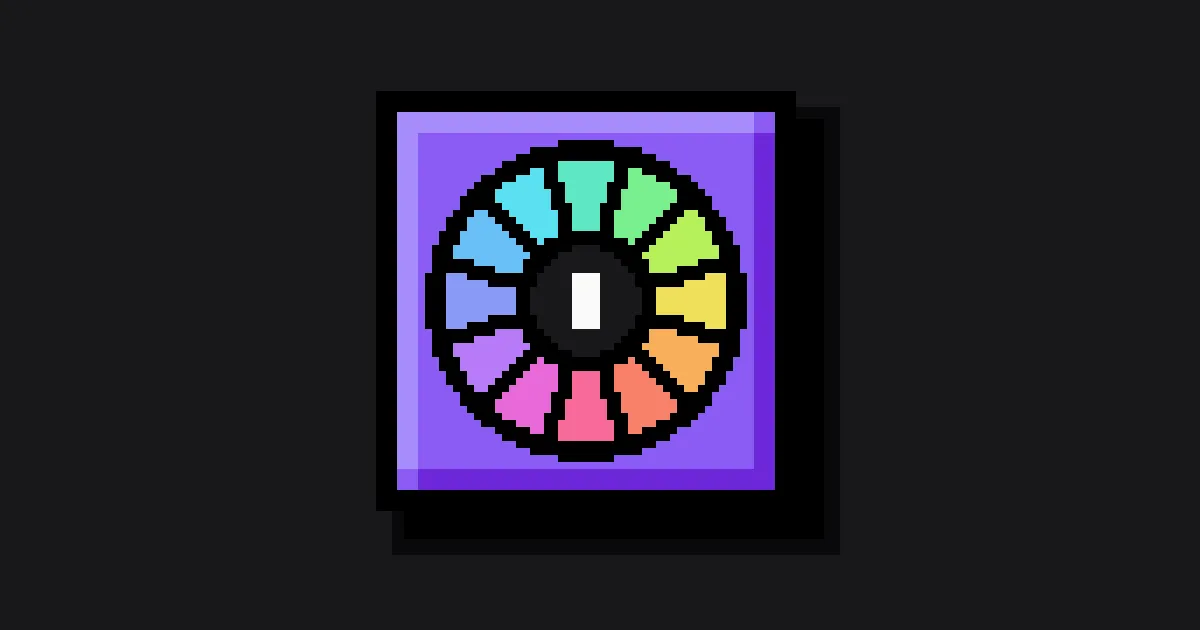
Mixing in key is one of those habits that pays off quietly. Two tracks that sit well together on the Camelot wheel blend without the clash you hear when the basslines fight. The hard part is rarely the theory. It is knowing what you actually have in 8A when the track playing is ending and you need the next one.
CuePoint has two places that answer that: the Keys page, for your whole library or a few playlists at once, and the Camelot wheel, for one track at a time. This post walks through both.
First, a key you can trust
Every key CuePoint shows is the track’s Beatport key, or one you typed yourself. Rekordbox’s own key is never used. That is on purpose: the point is to give you one value you have checked, not a guess.
So a track only has a key once it has a confirmed Beatport match, or once you set one. If you have not matched anything yet, start on Clean with one playlist. You can also type a key for a track by hand in Track details, under the Yours tab with Edit values…. CuePoint accepts classic (Am), Camelot (8A) or short (Amin) notation, and a key you type beats Beatport’s key for that track.
Tracks with neither show up as No Beatport key, so you always know what is missing.
The Keys page: what do I have in 8A?
Open the Keys page. On the left is Sources, which starts on your whole library. Tick any playlists, Collections or Sets to count only those. A track that sits in several of them is counted once, and CuePoint remembers your choice for next time.
On the right, a Wheel | List switch picks how you read the counts:
- The wheel draws the 24 keys as two rings, minor (A) inside and major (B) outside, with each key’s track count written on it. With Color keys on, each key is drawn in its Camelot color, brighter the more tracks it holds.
- The list gives the same counts in Camelot order (1A, 1B, 2A, and so on), with a bar for each.
Every count is written on the page, so nothing waits for you to hover. It is a quick way to see where your library is heavy and where it is thin.
From a key to the tracks
Click a key and the page scrolls to a table of the tracks in it. Select tracks to play them, or double-click one. To widen the choice:
- Ctrl+Click (Cmd+Click on a Mac) adds a key or takes it away.
- Shift+Click chooses every key between the last one you clicked and this one.
Then use Show keys that mix with 8A. It lights the keys that go with the one you chose: the same number one step either way, and the relative key. That is the classic harmonic mixing move, done for you on your own tracks.
Two buttons take it further. Open in Library shows the same tracks on the Library page with the same key and source filters. Save as Smart Collection… saves them as a Smart Collection that stays up to date as your library changes. A “Warm-up in 8A and friends” collection that keeps itself current is a nice thing to have before a gig.
The Camelot wheel: what mixes with this track?
When you are listening rather than browsing, the Camelot wheel is closer to hand. Open it from the key chip in Track details, or from the key in the player bar’s track line.
It lights the key of the track you have selected, or the track that is playing if nothing is selected, along with the keys that mix with it. A line under the wheel names the track and its key, such as “Playing: Strobe · 8A”. From the player bar it always follows the playing track.
Click a key on the wheel to open the whole Library on every track in that key. From there, the Library’s Key list can add the other keys that were lit.
It works from the keyboard too. Tab to the wheel button and press Enter. Inside, Left and Right move round the ring, Up and Down switch rings, and Enter filters.
When you plan a set
If you build sets in Prepare, the same wheel is behind its checks. Each transition is checked for a key clash, two keys with no relation on the wheel, and a suggestion for a gap names the key’s relation, such as “Same key”, “Next key” or “Relative key”. A warning never stops you. The Prepare guide covers it in full.
Try it on one playlist
Pick a playlist you play often, match it on Beatport, then tick it on the Keys page. You will see at a glance which keys it leans on, and the wheel will tell you what you can reach from each one. Questions and ideas are welcome as issues on GitHub.