
Find the right track in your whole Rekordbox collection
You know the next track should be 124 to 130 BPM, in a key that fits the one that is playing. Finding it in a long Rekordbox list means scrolling and squinting.
You know the next track should be 124 to 130 BPM, in a key that fits the one that is playing. Finding it in a long Rekordbox list means scrolling and squinting.
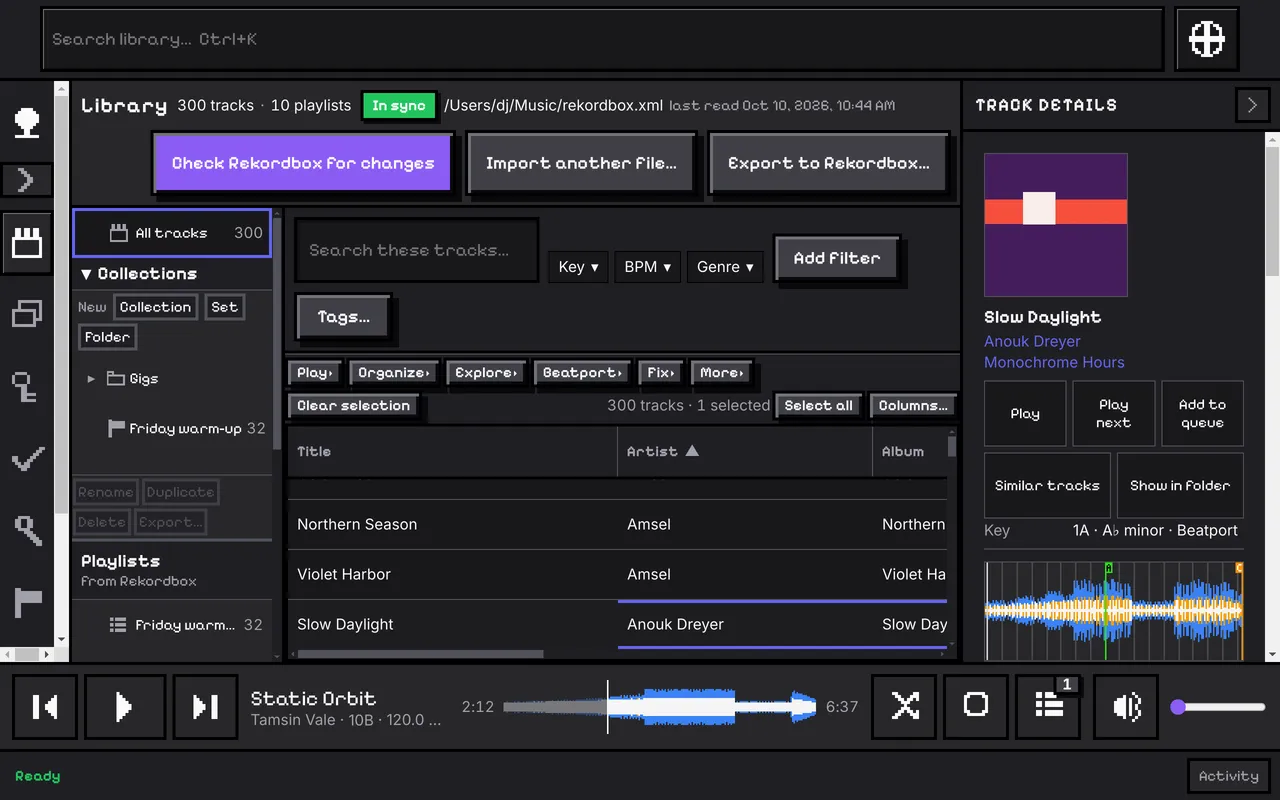
Import the collection you exported from Rekordbox and the Library page shows it with your playlists on the left. Type to search titles, artists, albums and labels, or add filters such as BPM between 124 and 130, genre is Techno, or a comment that contains a word. Filters stack, and the bar says how many tracks are left.
Choose your columns, click a heading to sort, and click a track to see everything CuePoint knows about it in Track details on the right.
A button next to search, on every page, opens a wheel of the 24 keys. It lights the key of the track you selected, or the one that is playing, and the keys that mix with it: the same number one step either way, and the relative key.
Click a key and the Library shows every track in that key.
A track's key is the one you typed, or else the key of its accepted Beatport match, shown in Camelot (8A). Rekordbox's own key is never used. A track with neither has no key, and the Library says “No Beatport key”.
The full steps, in the user guide.
Match tracks to Beatport, fix values, find duplicates and missing files.
New music from Beatport for the artists and labels already in your library.
Every part, one line each.